
FreeCine is an Android application, so there is no native Windows installer attached to this guide. To use FreeCine on a PC, install an Android emulator and then add the same 40 MB V3.0.5 APK used on a phone. The emulator creates an Android environment inside Windows 11 or Windows 10 and maps mouse, keyboard, audio and display controls to the app.
What you need before installing
- A 64-bit Windows 10 or Windows 11 PC
- At least 4 GB of RAM; 8 GB or more is more comfortable
- Several gigabytes of free space for the emulator and cached video
- Hardware virtualization enabled when supported
- A stable broadband connection for streaming
- The FreeCine V3.0.5 APK from this page
BlueStacks is used in the steps below because it offers a familiar APK installation control. Other reputable emulators can work, but menus and system requirements differ. Download the emulator from its official website rather than bundling it with the APK from a third party.
Step 1: Install BlueStacks on Windows
Open the official BlueStacks website, choose the current Windows release and run its installer. Review each screen instead of accepting unrelated optional software. After installation, open BlueStacks and allow it to complete its initial Android setup. A Google account may be requested for Play Store features, but sideloading a local APK generally does not require obtaining FreeCine from Google Play.
Step 2: Download FreeCine APK for PC
Use the download card on this page. Google Drive will identify the file as FreeCine-V3.0.5_apkfreecine.com.apk with a size of 40 MB. Because Drive cannot scan the executable, it shows a confirmation page. Choose “Download anyway” only after those details match.
Step 3: Add the APK to the emulator
In BlueStacks, select the “Install APK” control in the side toolbar, or drag the downloaded APK into the emulator window. Choose the file from the Windows Downloads folder and wait for Android to finish installing it. A FreeCine icon should then appear on the emulator home screen.
Step 4: Configure playback controls
Open FreeCine and allow only permissions related to its expected operation. Use the emulator’s full-screen button for a TV-like layout. The mouse acts as a touch pointer, the scroll wheel moves through catalogues, and the keyboard can enter search text. Set Windows and emulator volume independently if audio is too quiet.
Recommended display and performance settings
Start with a 1280×720 or 1920×1080 landscape display and 240 DPI. Allocate two to four CPU cores and 4 GB of memory if the PC has enough resources. Higher values do not always improve playback and can make Windows less responsive. Keep the emulator’s graphics renderer on its recommended setting, then try the alternative DirectX or OpenGL mode only if video is black or distorted.
FreeCine for PC troubleshooting
The APK will not install
Confirm that the download completed at approximately 40 MB. Remove a conflicting FreeCine copy from the emulator, restart BlueStacks and install again. If Windows security software blocks the file, review the alert rather than disabling protection globally.
The app opens to a black screen
Update the graphics driver, switch the emulator graphics renderer and restart the Android instance. Reducing the display resolution can help older integrated graphics. Also verify that other Android apps can access the network.
Video buffers or stutters
Test the connection without a VPN, close bandwidth-heavy Windows applications and lower the available playback quality. Buffering can originate from the content source, so a fast PC cannot resolve every unavailable stream.
FreeCine does not fit the window
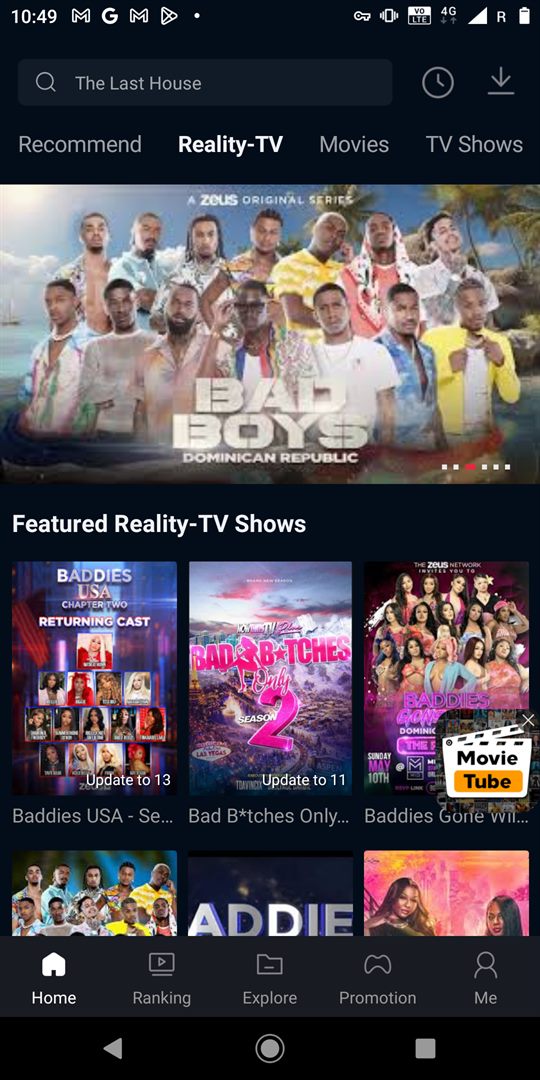
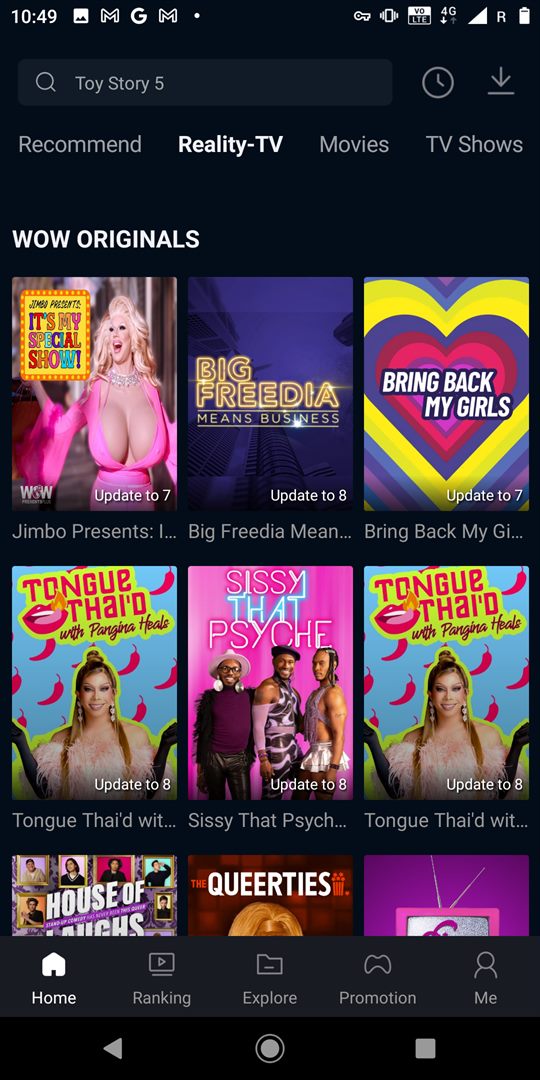
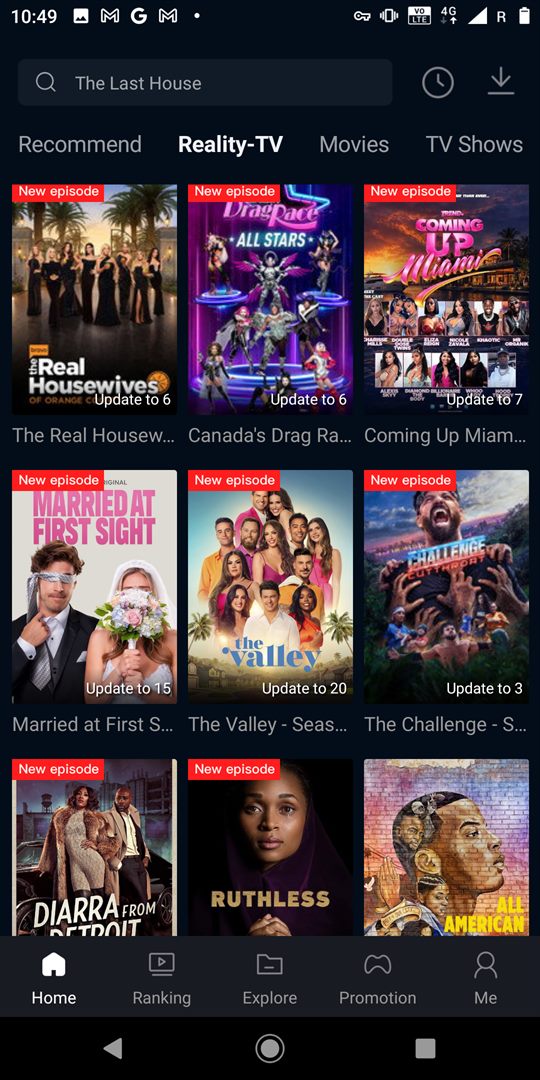
Rotate the emulator between portrait and landscape or use its resize controls. The supplied screenshots come from a portrait Android phone, while some playback screens are more comfortable in landscape mode.
Can you install FreeCine directly on Windows?
An APK cannot be launched directly by Windows like an EXE or MSI. Windows Subsystem for Android is no longer the dependable general solution it once was, so an actively maintained emulator is the clearer route. Avoid downloads labeled “FreeCine for PC.exe” unless they come from a verifiable official publisher; repackaging an APK inside an unknown Windows installer adds unnecessary risk.
Using FreeCine on a TV from your PC
You can connect the PC to a TV using HDMI or Windows wireless display features, then place the emulator in full-screen mode. For a device running Android TV, direct APK installation may be simpler and uses fewer resources than keeping a PC emulator running.
Interface preview
Return to the FreeCine APK homepage for the Android installation guide, or check the latest release record before updating the emulator.